
3.2. Exercises#
Each exercise carries the difficulty level indication:
[*] Easy
[**] Moderate
[***] Advanced
The highest difficulty level is meant for students who wish to challenge themselves and/or have previous experience in programming.
Zip files
When you have a directory with contents, such as additional subdirectories and files, it is possible to zip it. The resulting zipped (compressed) file is not a directory anymore, but a file. Importantly, this zipped file takes up less storage space. Additionally, you can treat it as a file, i.e., you can download it in one go, which makes it convenient for sharing.
For some exercises in this book, we want to share more than one file or an entire directory with you. To make downloading easier, we zipped those. In practice, this means you will occasionally be downloading .zip files.
However, to start treating them as directories, you will always need to unzip (extract) them. You can typically do this by double-clicking and, depending on your computer’s OS, using additional options for extraction. Of course, it’s also possible to unzip files from within the terminal with unzip file.zip, as long as you have unzip installed.
Note: if you see a .DS_Store or similar hidden macOS files in a downloaded zip, you can delete or ignore them.
Data management
It’s good practice to think about managing your directories and folder, i.e., locations and names you give them. While it sounds like a small thing, it saves time in the long run (think in a few months’ or years’ time when you won’t remember where your data is, unless you saved it in a logical place with a logical name). Therefore, when solving exercises from this book, try to keep your data and exercise solutions organized.
Exercise 3.9 ([*] Your computer)
Open your Bash terminal. Using the outlined commands, answer the following questions:
In which directory are you located by default? Use
pwd.What other directories and files can you see in there? Use
ls.Select one non-empty directory (i.e., a directory that you know contains some files) and move there using
cd. Which files can you see and which one is the largest in size? Usels -l.Copy the largest file one directory up. Use
cpand../.
Exercise 3.10 ([*] Ecosystems)
Fig. 3.5 Coral reef (photo source, NOAA’s National Ocean Service, public domain).#
Download this zip file and unzip it in your working directory. Open the terminal and use it to navigate to this new unzipped directory.
In this exercise, the following commands will be useful: pwd (print working directory), ls (list contents of current directory), and cd (change directory).
Explore the directory — how many sub-directories does it contain? What if you go into these sub-directories? Use pen and paper to draw a diagram of the directory structure. Hint: ls * may come in handy.
When you draw a full scheme, use it to answer the following questions:
Which ecosystem contains the most subtypes?
Which subtype is located in a wrong directory?
Advanced: use the internet to find a command that counts the number of sub-directories in a directory and try it out.
Advanced: write down the command from the previous step on paper and label each component. What parts do you recognize? Try
--help, search the internet, or ask a LLM regarding any parts that you do not recognize.
Exercise 3.11 ([*] The Hogwarts library)
Download this zip file and unzip it in your working directory. Open the terminal and use it to navigate to this new unzipped directory.
What do you find inside the unzipped directory? Use cd, ls, and less to explore directories, files, and their contents.
One file contains the spell Expecto Patronum. Find this spell hidden in the spellbooks. You can use less to try to find it. Alternatively, to search through the files more efficiently, use grep.
Once you find the spellbook file with Expecto Patronum, copy it into a new directory called Powerful_Spells/. You can create this new directory in the Library/ directory using the mkdir command.
Advanced
There is another misfiled spell. Someone has accidentally categorized the spell Alohomora as a healing potion, while it should be filed under charms.
Without leaving Vim:
Open
Healing_potions.txtin VimSelect and delete the misfiled lines using Vim operations
Save changes without quitting
Use the
:edit ../command to navigate toCharms.txtPaste the lines you deleted
Exercise 3.12 ([*] Time traveler’s data backup)
Download this zip file and unzip it. Open the terminal and use it to navigate to this new unzipped directory.
Inside the unzipped directory, you will find the time traveler’s data backup. It seems that some of the files have corrupted or scrambled file names!
Let’s help the time traveler organize their data.
Use the terminal to:
Correct the file names, e.g., rename
Pharaoh123.txttoPharaohs_of_Egypt.txt. Themvcommand andlessmay be useful here.Create 3 new directories —
Ancient_Egypt/,Middle_Ages/, andFuture/— usingmkdir.Move the six text files into the corresponding directories. The
mvcommand will come in handy again.
Exercise 3.13 ([*] Courses)
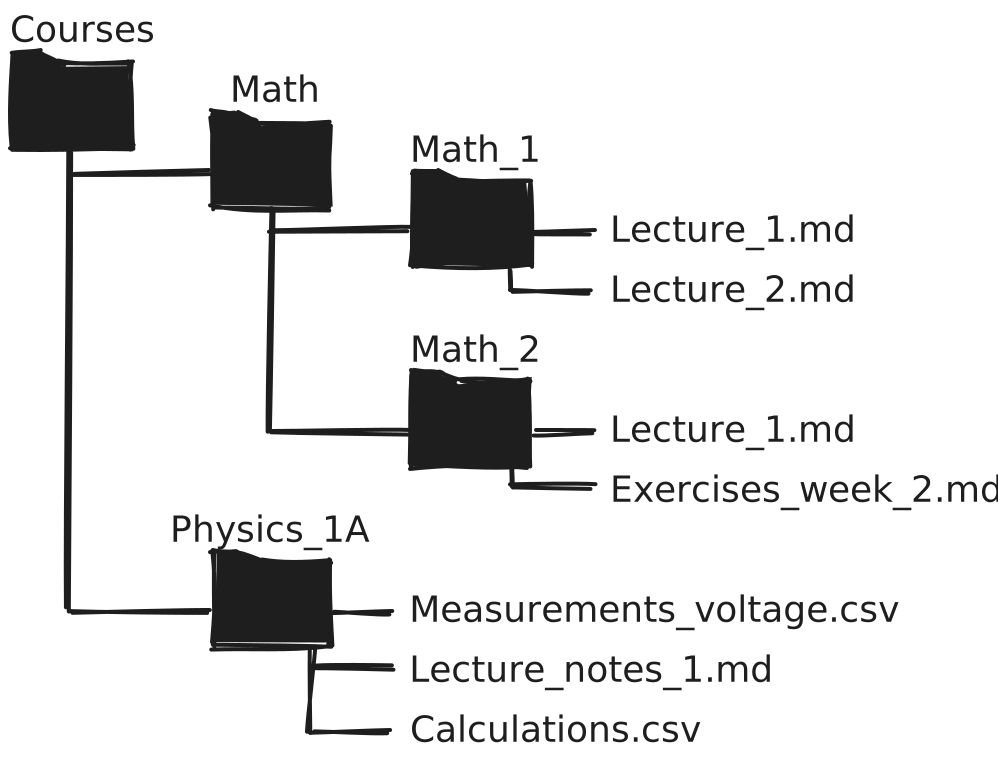
Fig. 3.6 Folder diagram#
Download this zip file and unzip it. Open the terminal and use it to navigate to this new unzipped directory.
Use the directory and file structure shown in the diagram to answer the following six questions. Each question specifies your current directory and asks you to write a terminal command that can perform the required task.
Current location: Math_1
Task: navigate to the directory Math_2
Command:
Current location: Physics_1A
Task: copy all CSV files (.csv extension) from Physics_1A to Math_1
Command:
Current location: Courses
Task: move the markdown file (.md extension) from Physics_1A to Math_2
Command:
Sample solution
You can manipulate files and directories that are not in your current working directory by addressing them by their path relative to your current working directory.
Example:
mv ./Physics_1A/*.md ./Math/Math_1/
This command allows you to move all markdown files from Physics_1A/ to Math/Math_1/ given that your current working directory is Courses/.
This principle can also be applied to solve all tasks in this exercise.
Current location: Math
Task: copy lecture files from both Math_1 and Math_2 into Physics_1A
Command:
Current location: Math_2
Task: move Calculations.csv from Physics_1A to Courses
Command:
Current location: Courses
Task: copy all CSV files from Physics_1A to Courses
Command:
Advanced
You can also move parent directories of your current working directory.
Current location: Courses
Task: Create a new directory Physics_1B in Courses.
Command:
Current location: Courses
Task: Create a new directory Physics in Courses.
Command:
Try the following task from each of the listed locations and report under what circumstances the behavior is expected. Before each attempt, make sure the directory structure is reset back to:
Courses/
├── Math
│   ├── Math_1
│   └── Math_2
├── Physics
├── Physics_1A
└── Physics_1B
Task: In a single command, move Physics_1A and Physics_1B into Physics.
Current location: Courses
Command:
Works as expected?:
Current location: Physics
Command:
Works as expected?:
Current location: Physics_1A
Command:
Works as expected?:
Current location: Physics_1B
Command:
Works as expected?:
Exercise 3.14 ([*] Physics lab report)
We got our hand on this physics lab report.
It seems like our physicist was in a hurry and made some mistakes in the report. First, open your terminal, navigate to the directory with the lab report file and open the file in Vim. To open the file, use vim Physics_lab_report.txt.
Fixing the typos
The first typo we see is “acceleratian” and we want to correct it to “acceleration”. There are two occurrences of this typo. Use arrows to move the cursor to the position of each typo. Alternatively, you can also move from word to word by pressing w. When you’re at the position of a typo, press x to delete the wrong character (“a”). Then press i to enter the insert Vim mode, type the correct letter “o”, and press esc to exit interactive mode.
There’s another typo in the word “directly” in the Hypothesis section. Go ahead and fix that one too.
Add missing results data
In a hurry, our physicist forgot to record their results. Navigate to the Results section of the lab report and add this sentence: “The velocity was recorded as 2 m/s”. Once again, you will need the insert mode.
Save changes and exit Vim
To save all your changes and exit Vim, use the :wq command in Vim. Verify that all your changes got saved correctly by reading your file using less.
Exercise 3.15 ([**] Organizing research data)
Download this zip file containing some research data, and unzip it in your working directory. Using the terminal, explore the contents of the downloaded directory.
As you will notice, the data originate from a physics experiment where force and velocity were measured in several experiments. However, rather than organizing data in directories by experiment number, you now realize that it would be more useful to have force data together in one directory, and velocity data together in another directory. Let’s reorganize the data!
First, in your working directory (i.e., outside of Physics_data/), create two empty directories named Velocity_reports/ and Force_reports/. Then use wildcards * to copy all files containing velocity data from Experiment_1/, Experiment_2/, Experiment_3/, and Misc/ into Velocity_reports/. Finally, do the same for the force reports, and verify that all files were copied into the correct new directories.
Exercise 3.16 ([**] Proteins)
Download this zip fileand unzip it in your working directory.
Part I
Use your Bash terminal to do the following:
Navigate to your desired work directory (e.g., Documents).
Create a new directory called
Proteins/.In
Proteins/, create the following sub-directories named by species:Homo_sapiens/,Escherichia_coli/, andSaccharomyces_cerevisiae/.
Part II
Unzip the archive in your working directory.
Using the terminal, navigate to this new unzipped directory. What can you find inside? How many files are there?
Which file is the largest in size, and how can you verify this in the terminal?
Explore the contents of the files using
less. Determine which file belongs to which of the three species in Part I. Use themvcommand to move each file to the corresponding directory inProteins/.
Part III
Using the terminal, navigate again to the Proteins/ directory and its sub-directories. Explore each of the protein sequence files you placed there using less to answer the following questions:
Which organism’s protein is involved in metal resistance?
Which protein contains this sequence:
QQESQSLQLHFRVW?How many times does the sequence
SSIappear in each protein?
Exercise 3.17 ([**] Electron configurations)
Download this zip file and unzip it in your working directory. Use the terminal to navigate to it and explore it.
A chemist is organizing data on electron configurations for various elements and they need our help with locating and organizing electron configuration data for specific elements. Specifically, it seems like the file for one element got misplaced.
Locate the misplaced file and move it to the correct directory.
One element has a wrong symbol listed inside its file. Find the error, open the corresponding file in Vim, and correct it. Then save and close the file.
One element has a faulty electron configuration. Open the corresponding file in Vim and correct it. Then save and close the file.
Advanced: Use the grep command to print all mentioned electron configurations to the terminal. You will need to find a relevant pattern of text shared between all files as well as the right combination of flags for grep.
Exercise 3.18 ([**] Alice in Wonderland and the Vim Replace)
Fig. 3.7 “A Mad Tea-Party”, illustration by John Tenniel for Alice’s Adventures in Wonderland (1865, public domain; image source).#

Something has gone terribly wrong when copying the excerpt from Alice’s tea-party below. The heroine is nowhere to be found!
Open your terminal and navigate to the working directory.
With one command, create and open a new file called
alice_in_wonderland.txtin Vim.Copy the text below into your file. Note that there’s a copy button in the top right part of the text box.
There was a table set out under a tree in front of the house, and the April Hare and the Hatter were having tea at it: a Dormouse was sitting between them, fast asleep, and the other two were using it as a cushion, resting their elbows on it, and talking over its head. “Very uncomfortable for the Dormouse,” thought Bob; “only, as it’s asleep, I suppose it doesn’t mind.”

The table was a large one, but the three were all crowded together at one corner of it: “No room! No room!” they cried out when they saw Bob coming. “There’s plenty of room!” said Bob indignantly, and she sat down in a large arm-chair at one end of the table.

“Have some wine,” the April Hare said in an encouraging tone.

Bob looked all round the table, but there was nothing on it but tea. “I don’t see any wine,” she remarked.

“There isn’t any,” said the April Hare.

“Then it wasn’t very civil of you to offer it,” said Bob angrily.

“It wasn’t very civil of you to sit down without being invited,” said the April Hare.

“I didn’t know it was your table,” said Bob; “it’s laid for a great many more than three.”

“Your hair wants cutting,” said the Hatter. He had been looking at Bob for some time with great curiosity, and this was his first speech.

“You should learn not to make personal remarks,” Bob said with some severity; “it’s very rude.”

The Hatter opened his eyes very wide on hearing this; but all he said was, “Why is a raven like a writing-desk?”

“Come, we shall have some fun now!” thought Bob. “I’m glad they’ve begun asking riddles.—I believe I can guess that,” she added aloud.

“Do you mean that you think you can find out the answer to it?” said the April Hare.

“Exactly so,” said Bob.

“Then you should say what you mean,” the April Hare went on.

“I do,” Bob hastily replied; “at least—at least I mean what I say—that’s the same thing, you know.”

“Not the same thing a bit!” said the Hatter. “You might just as well say that ‘I see what I eat’ is the same thing as ‘I eat what I see’!”

“You might just as well say,” added the April Hare, “that ‘I like what I get’ is the same thing as ‘I get what I like’!”

“You might just as well say,” added the Dormouse, who seemed to be talking in his sleep, “that ‘I breathe when I sleep’ is the same thing as ‘I sleep when I breathe’!”

“It is the same thing with you,” said the Hatter, and here the conversation dropped, and the party sat silent for a minute, while Bob thought over all she could remember about ravens and writing-desks, which wasn’t much.
Use a single Vim command to replace all occurrences of
BobwithAlice.Use a Vim command to replace the first three occurrences of
April HarewithMarch Hare.Save changes and exit the file.
Advanced
You may have noticed that pasting into Vim from your clipboard is not as straightforward as pressing p and resorted to Right-click > Paste.
Vim has different registers to store yanked/deleted text in. The one connected to your system clipboard is the + registry. To paste from it, use (verbatim) "+p. To yank to it, use "+yy.
If you want to store multiple chunks of yanked text at a time, you can save them to any of the named registers (a through z) and retrieve them by pasting.
"ayy yanks the current line to the a register. You can paste from that register with "ap.
Exercise 3.19 ([***] Quotes)

Open your terminal and navigate to the working directory.
With one command, create and open a new file called
fun_quotes.txtin Vim.Copy the text below into your file. Note that there’s a copy button in the top right part of the text box.
1. Andy Weir: The Martian
Yes, of course, duct tape works in a near-vacuum. Duct tape works anywhere. Duct tape is magic and should be worshipped

2. Terry Pratchett: Hogfather
Real stupidity beats artificial intelligence every time

3. Bill Nye the Science Guy
If you're not part of the solution, you're part of the precipitate

4. Douglas Adams: Hitchhiker's Guide to the Galaxy
The answer to the ultimate question of life, the universe, and everything is… 42

5. Interstellar
We used to look up at the sky and wonder at our place in the stars. Now we just look down and worry about our place in the dirt

6. Neil Gaiman and Terry Pratchett: Good Omens
God does not play dice with the universe; He plays an ineffable game of His own devising, which might be compared, from the perspective of any of the other players, to being involved in an obscure and complex version of poker in a pitch-dark room, with blank cards, for infinite stakes, with a dealer who won't tell you the rules and who smiles all the time

7. Breaking Bad
You know, technically, chemistry is the study of matter. But I prefer to see it as the study of change

8. Bill Bryson: A Short History of Nearly Everything
There are three stages in scientific discovery. First, people deny that it is true, then they deny that it is important; finally they credit the wrong person

9. The Big Bang Theory
I'm not crazy, my mother had me tested

10. Neil deGrasse Tyson: Cosmos
There's as many atoms in a single molecule of your DNA as there are stars in the typical galaxy; we are, each of us, a little universe

11. Yuval Noah Harari: Sapiens
You could never convince a monkey to give you a banana by promising him limitless bananas after death in monkey heaven

12. Randall Munroe
I can't remember where I heard this, but someone once said that defending a position by citing free speech is sort of the ultimate concession. You're saying that the most compelling thing you can say for your position is that it's not literally illegal to express

13. WALL-E
This is called farming! You kids are gonna grow all kinds of plants! Vegetable plants, pizza plants

14. Terry Pratchett: Thief of Time
Some humans would do anything to see if it was possible to do it. If you put a large switch in some cave somewhere, with a sign on it saying 'End-of-the-World Switch. PLEASE DO NOT TOUCH', the paint wouldn't even have time to dry
Which Vim operations would you need to use to add a full stop to the end of a quote? Write down exactly what to do step by step (key press + effect).
In Vim, create a macro called
athat adds a full stop to the end of a quote. Then, call this macro the necessary number of times to add full stops to all quotes in one go.Did everything go as planned? If not, mark the operation where you think your macro went wrong and try again.
Create a second macro called
bthat wraps a quote in quotation marks and moves the cursor to the next quote. Call the macro 14 times in one go.Save changes and close your file.