
import matplotlib
if not hasattr(matplotlib.RcParams, "_get"):
    matplotlib.RcParams._get = dict.get
3.1. Bash commands#
Interactive page
This is an interactive book page. To solve quizzes, press the launch button at the top right side of the page (look for a small rocket icon) and then click Live Code.
3.1.1. Accessing Bash#
Before we dive into Bash commands, let’s clarify how to access Bash on different operating systems:
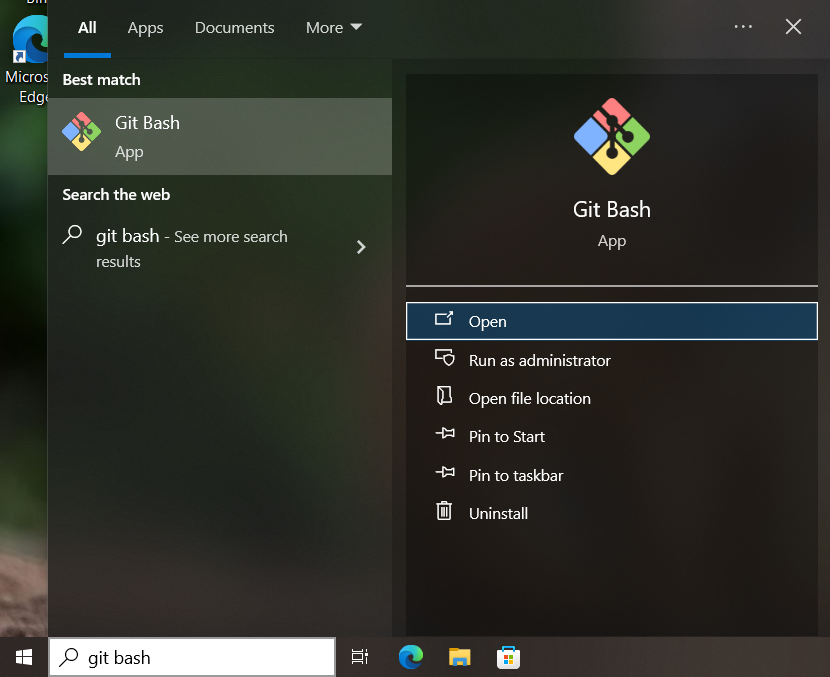
Windows: You need to use Git Bash, which was installed together with Git during the setup process (refer to this chapter if you haven’t installed Git yet). To open Git Bash, search for “Git Bash” in your Start menu and launch the application.
Linux/macOS: Bash comes pre-installed on these systems. Simply open the Terminal application (you can find it by searching for “Terminal” in your applications/Spotlight search).
Once you have Bash open, you can start entering and exploring commands as described below.
3.1.2. Bash commands#
To begin familiarizing yourself with the terminal, we first provide an overview of commonly used Bash commands (Table 3.1), which are explained in more detail below on this page. The overview is not exhaustive - if you want to perform an action not covered by the table, ask an LLM or search online to find an appropriate command.
Detailed help for every command
You can get more information on a command by ending it with the flag --help. This does not execute the command and instead prints detailed instructions on how to use the command into your terminal. Try executing the example below in your terminal to see for yourself with and without --help:
pwd --help
Command |
Effect |
Details |
|---|---|---|
|
Print working directory |
Display the location (path) of the directory in which you’re currently working. |
|
Change directory |
Navigate between directories. To go to the home directory, use |
|
Make a new directory |
Creates a new empty directory with the user-defined name. |
|
Remove a directory |
Deletes a directory if it’s empty. See also |
|
List contents of a directory |
Use with |
|
Open a file to view its contents. To exit an opened file, press |
Doesn’t allow for file editing. |
|
Print file contents to terminal |
If used with more than one file, it concatenates them and prints the result in the terminal. |
|
Copy |
Copy a file to another directory, or make a file copy in the same location. To copy a directory with all its contents, use |
|
Move / Rename |
Moves or renames files and directories. (Does not need |
|
Remove |
Deletes a file. |
|
Search |
Search for text patterns. |
|
Clear terminal window |
Clears commands and outputs to declutter the terminal. |
Special characters and operators |
Effect |
Details |
|
Current folder |
|
|
One folder up (parent folder) |
|
|
Home directory |
Shorthand for your home directory path. |
|
Wildcard |
Replaces any text. |
|
Redirect |
Instead of printing output of running a command in the terminal, with |
|
Quote |
Surrounding a path with quotes |
More commands
Don’t hesitate to look for information online (Google, StackOverflow, ChatGPT) when you’re not sure how to do something, or what is the exact command that you need to use.
3.1.3. Navigating directories#
Files and folders
If you’re not familiar with the concepts of files and folders, and how to navigate those using graphical user interface on your computer, refer to this chapter before you continue to read.
Effectively navigating directories with the cd command is at the very core of working with the terminal - we have to know in which directory we are currently working. In addition, knowing our location is essential for several commands, such as cp and mv discussed below. Let’s take a closer look at navigating directories in the terminal.
Every directory on your computer has a specific path assigned to it.
You can think of the overall arrangement of folders on your computer as a tree (Fig. 3.2) and paths as addresses within the tree.
The root of the tree is called root directory.
Each user also has their own home directory - this is the default location when you first open your terminal, and the place you’re brought to when you use the command cd without specifying to which folder you wish to go.
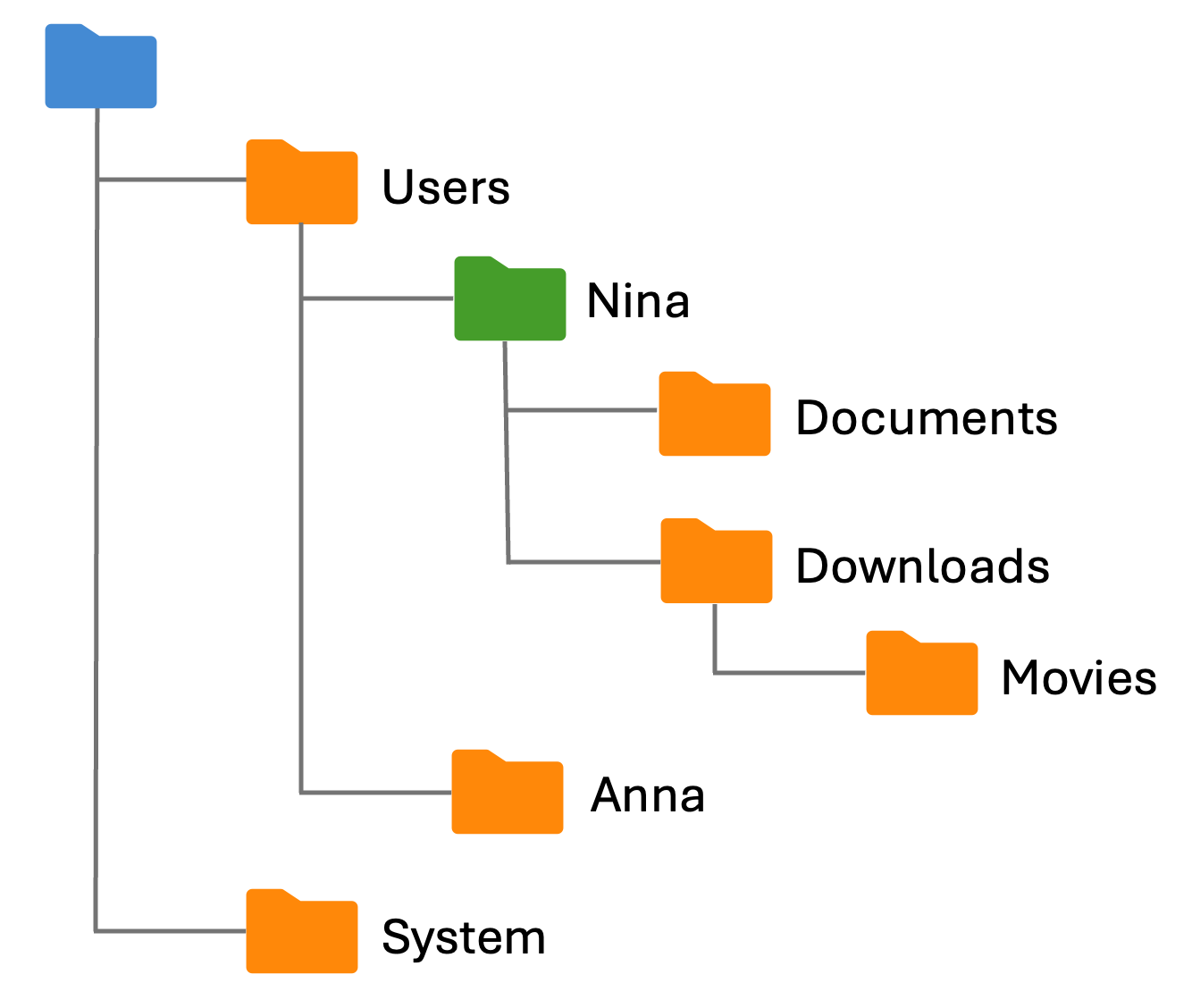
Fig. 3.2 An example of a folder tree. The root directory is colored blue, and the home directory for user Nina is colored green.#
A path to a specific location can be:
Absolute, i.e., with respect to the root: using
pwdcommand in the terminal will always print the absolute path for your current location, which can look something likeUsers/Anna/Documents/Research/.Relative, i.e., with respect to your current location. It’s useful to know the following notation:
.= current directory
..= one directory up in the tree (parent directory)
These can then be stacked, e.g., you can move one directory up from your current directory withcd ../, two directories up withcd ../../, etc.
Home and root directories
The tilde ~ is a shortcut to denote a home directory. Therefore, you can use the tilde followed by a slash ~/ as the beginning of a path to a file or directory in the home directory. To change directory from any directory directly to the home directory, use cd or cd ~.
Similarly, to navigate from anywhere directly to the root directory, use cd /.
Avoid special characters in names
Avoid using spaces or special characters in your directory and file names, as it may cause enexpected issues when working with terminal and Python.
When your file or directory contains several words, use underscore _ for easy recognition of the words while at the same time avoiding spaces.
For instance, use My_new_file.txt instead of My new file.txt.
For more examples and a more extensive explanation, refer to this chapter on avoiding special characters.
In Fig. 3.2, you can imagine the following navigation between directories:
When opening the terminal of user Nina, we are located in the home directory of Nina, which is called
Nina/.cd Downloads/Movies/brings us to the directoryMovies/- now we’re moving down or deeper into the tree.To go back to the directory
Nina/, we can use eithercd ../../orcd(becauseNina/is the home directory).To navigate from
Nina/toSystems/, we usecd ../../Systems/, thereby first moving two folders up to root, and then going down into theSystems/directory.
Of course, you don’t have to know the directories arrangement on your computer by heart.
Whenever you’re not sure in which directory you’re located, use pwd to learn its absolute path.
To see which directories (and files) are placed in your current directory, use ls, ls -l, or ls -lh.
Similarly, to see which directories (and files) are located one directory up, you can use ls .., ls -l .., or ls -lh ...
ls command
The ls command lists the contents of the current directory and can be used with flags -l or -lh, among others.
The -l flag gives more information about files in the directory, while -lh (h for human) also shows file sizes in a human-readable way (Fig. 3.3).
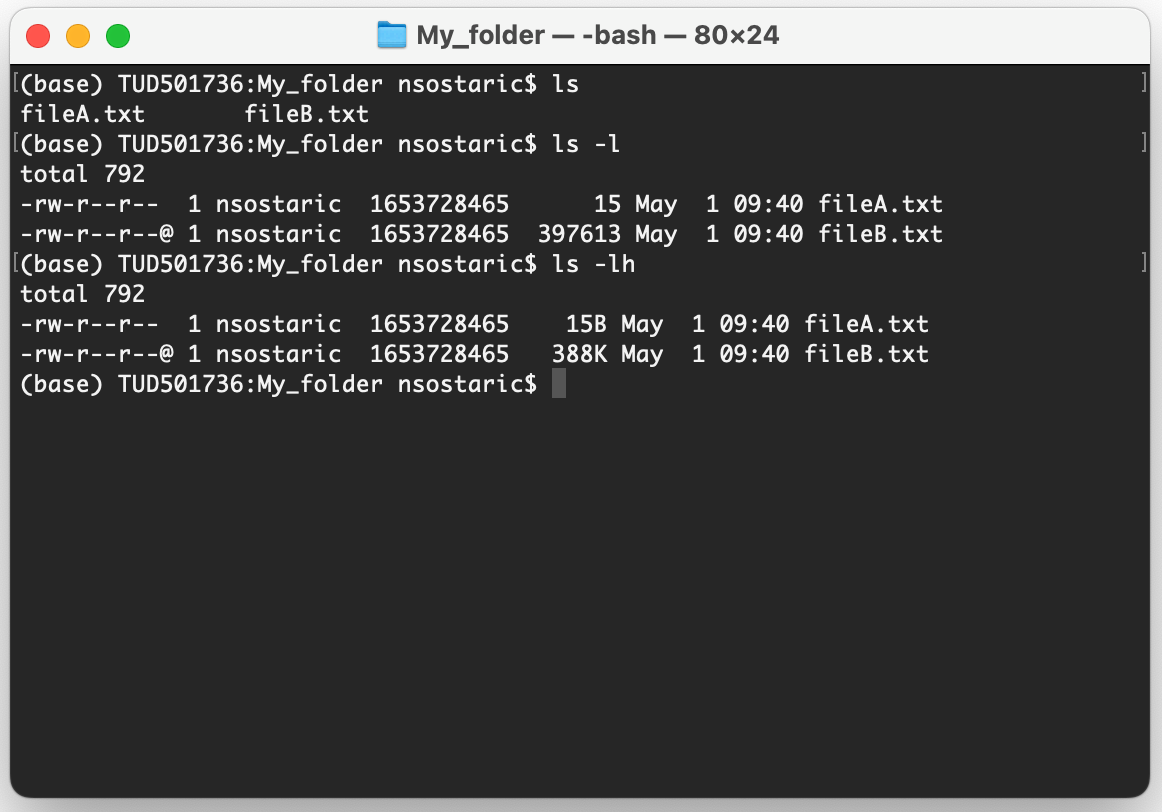
Fig. 3.3 Listing contents (fileA.txt and fileB.txt) of My_folder in the terminal using ls, ls -l, and ls -lh.#
import micropip
await micropip.install("jupyterquiz")
from jupyterquiz import display_quiz
import json

with open("question1.json", "r") as file:
    questions=json.load(file)

display_quiz(questions, border_radius=4, colors={'--jq-multiple-choice-bg': '#c9b8f5', '--jq-many-choice-bg': '#d4845a', '--jq-numeric-bg': '#8b6cc4', '--jq-string-bg': '#8b6cc4', '--jq-mc-button-bg': '#f5f0ff', '--jq-mc-button-border': '#c9b8f5', '--jq-mc-button-inset-shadow': '#8b6cc4', '--jq-text-color': '#1e0e40', '--jq-correct-color': '#00843f', '--jq-incorrect-color': '#d72d47', '--jq-numeric-input-bg': '#d4c8f8', '--jq-numeric-input-label': '#1e0e40', '--jq-numeric-input-shadow': '#8b6cc4'})
Exercise 3.1
Open the terminal on your laptop. Using the commands explained in the text above, such as pwd, cd, and ls, explore directories on your computer.
Exercise 3.2
Open your terminal. Run the following commands in consequtive order. After running each command, ask yourself: What is the absolute path of your current directory?
pwdcd Downloads/cd ../cd ../cd
Was it possible to execute these commands? If not, why? In the latter case, you can try again starting the first step from your home directory.
Using pen and paper, make a diagram of how you were navigating through your directories using these commands.
Tree
As you’ve experienced by now, exploring your directories with ls command can be a bit tedious. People have, therefore, devised a specialized terminal command that gives you a more graphical overview of your directories - tree. If you try to run tree in your terminal and nothing happens, that means that it’s currently not installed:
Linux:
sudo apt-get install treemacOS: install Homebrew first (see this section), then run
brew install treeWindows (Git Bash):
treeis not included in Git Bash, but you can add it manually: downloadtree.exefrom GnuWin32 (under Binaries) and copy it intoC:\Program Files\Git\usr\bin\. After that,treewill work in Git Bash without any further configuration.
Note that using tree is not required for following the content in this book and solving exercises.
Autocomplete
If you’re working with a long path, directory, and/or file names, typing their names can be a daunting and (more importantly) error-prone task.
To make this easier and faster, you can use Tab for autocompletion.
If the name you’re aiming for is unique, it will get autocompleted with Tab.
Otherwise, you will need to type one or a few more letters to help the autocomplete get to a unique point.
Pressing Tab twice will give you a list of options.
Exercise 3.3
Open your terminal.
What happens if you type
cdand then pressTab? How about when you pressTabonce again?How about typing
cd Dorcd Dow, followed byTab?
3.1.4. Manipulating directories#
With the terminal you can easily create (mkdir A/) or delete an empty directory A/ (rmdir A/), where A/ can be something like Movies/ in the figure above.
You can also use rm to delete directories, cp to copy, and mv to move and rename them.
If you have a directory with files inside (i.e, a non-empty directory), you cannot use rmdir to delete it. In order to delete a non-empty directory with all its contents, you need to use rm in a recursive fashion: rm -r A/.
Similarly, if you wish to make a copy of a directory with files inside, this also has to be done recursively. Notice the nuanced differences between the following commands:
cp -r A/ new_A/- copies the contents of source directoryA/into a new directory callednew_A/.cp -r A/ existing_A/- makes a copy of the directoryA/with all its contents inside the existing directoryexisting_A/.
In addition to copying, we can also move directories.
To move directory A/ with all its contents into directory B/, we can use mv A/ B/.
We can also use mv to rename a directory like this: mv A/ new_name_A/.
Notice that when copying or moving to a destination that does not yet exist, the destination is created containing A/’s contents, not a copy of A/ itself.
Exercise 3.4
Try to use rmdir and rm with one of your non-empty folders. What message does the terminal return?
Exercise 3.5
In your terminal:
Navigate to your desired working directory (this could be, e.g.,
Documents/orDesktop/).Create two new directories: name them
Aandexisting_A.Copy any file to directory
A/. Because we don’t yet know how to do it in the terminal, you can do it using your mouse and GUI.From your working directory, try to run the
cpandmvcommands mentioned above and observe what the effects are. Note: you may need to “reset” your setup with two folders depending on which command you ran.
Recalling previous commands
Sometimes you want to use the same command you used recently in your terminal, either to run it again, or make a small modification and then run it.
There’s an easy way to fetch your previously executed commands instead of retyping them: you can simply press arrow up (↑) once or multiple times.
To print a full list of recent commands, use the command history.
Try it in your terminal!
3.1.5. Working with files#
Several commands that apply to working with directories also apply to files. Let’s take a look at what the following commands mean:
cp a.txt b.txt- copiesa.txttob.txtin the same directory. Usingmvinstead ofcpwould renamea.txtintob.txt.cp a.txt ../- copiesa.txtto one directory up (it can also be used withmvto move the file).cp a.txt A/- as previous command, but copiesa.txtin the directoryA/(can also be used withmv).cp ../a.txt .- copiesa.txtfrom one directory up to the current (.) directory (it can also be used withmv).
3.1.5.1. Wildcard#
Sometimes you will want to copy or move multiple files or directories at the same time.
To avoid typing each command individually or recalling the same command and changing it multiple times, you can use the wildcard * to replace any text.
For instance, let’s say we are located in the directory Physics:
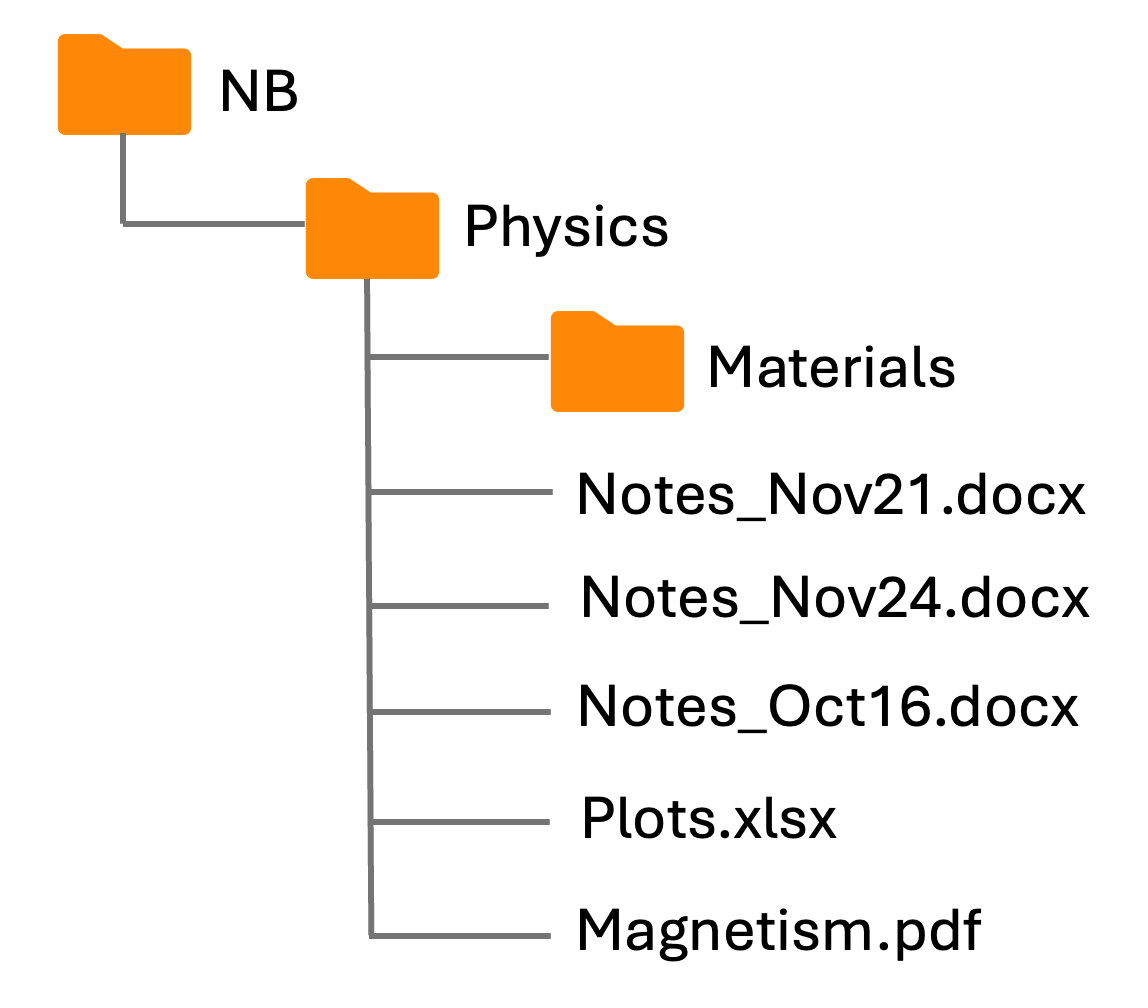
Fig. 3.4 Example folder: wildcard usage.#
If we are in the directory Physics and want to move all Notes files into directory Materials/, we could use mv Notes* Materials/.
With Notes*, we included all three .docx files. Therefore, * effectively means Nov21.docx or Nov24.docx or Oct16.docx.
We could alternatively use mv N* Materials/ because our three files with notes are the only files beginning with letter N, so mv N* already defines our selection. Another option would be to use mv *docx Materials/ because Notes are the only .docx files in the directory Physics/.
Note that it’s also possible to use multiple wildcards in one go if there are several patterns you wish to generalize. E.g., to delete all .docx files that have Nov in their name, you can use rm *Nov*.docx.
import micropip
await micropip.install("jupyterquiz")
from jupyterquiz import display_quiz
import json

with open("question2.json", "r") as file:
    questions=json.load(file)

display_quiz(questions, border_radius=4, colors={'--jq-multiple-choice-bg': '#c9b8f5', '--jq-many-choice-bg': '#d4845a', '--jq-numeric-bg': '#8b6cc4', '--jq-string-bg': '#8b6cc4', '--jq-mc-button-bg': '#f5f0ff', '--jq-mc-button-border': '#c9b8f5', '--jq-mc-button-inset-shadow': '#8b6cc4', '--jq-text-color': '#1e0e40', '--jq-correct-color': '#00843f', '--jq-incorrect-color': '#d72d47', '--jq-numeric-input-bg': '#d4c8f8', '--jq-numeric-input-label': '#1e0e40', '--jq-numeric-input-shadow': '#8b6cc4'})
3.1.5.2. Reading files#
For taking a glance at the contents of a text file in read-only mode, less comes in very handy.
To open a file for reading, we use less file.txt.
We can further navigate through the text of a file by scrolling or search for specific text patterns like this: /Pattern (note that this is case sensitive, i.e., there is a difference between /Pattern and /pattern).
To navigate to the end of the file, use G. To move to the beginning of the file, use g.
To close the file, simply press q (for “quit”) on your keyboard.
An alternative command used to read the contents of a file is cat.
Unlike the less command which opens a file, cat prints a file’s contents to your terminal.
If you use it with more than one file, e.g., cat fileA.txt fileB.txt, it will concatenate the files and print the output in the terminal.
3.1.5.3. Editing files with Vim#
Vim is a powerful text editor which you can use from within the terminal.
Unlike text editors such as Notepad or MS Word, which emphasize click-to-type style editing, Vim is entirely command-based.
That means that writing new text in the file requires extra steps instead of just starting to type. When opening a file, Vim starts out in normal mode, which is meant for navigation and large edits. To start typing new text, press i to go into insert mode.
Having different modes allows Vim to take advantage of the full keyboard, which makes it very fast for users familiar with it.
Vim takes some getting used to, but is ultimately a powerful text editor that usually comes pre-installed on computer systems (like DelftBlue), making it a safe fallback.
3.1.5.3.1. Opening and closing files#
To open a file in Vim, use:
vim filename.txt
If filename.txt exists, it will open for editing. If it does not exist, a new file with that name will be created.
There are several options to exit Vim:
:quit→ quit (only works if no changes were made):quit!→ quit without saving:write→ save without quitting:writefollowed by:quit→ save and quit
In practice, most users abbreviate these commands as :q, :q!, and :wq respectively, which do the exact same thing but are quicker to type.
Exercise 3.6
Try out the commands for opening and closing files in Vim in your terminal. You can use a new or an existing file.
3.1.5.3.2. Vim’s modes#
Unlike standard text editors, Vim operates in different modes:
Normal mode (default) – used for navigation, copying, pasting, deleting, and running commands.
Insert mode (activated with
i) – used for typing text.Visual mode (activated with
vorV) – used for selecting text. See more here.Command mode (activated with
:) – used for saving, quitting, and running advanced commands.
You can also switch between modes when you work on a file. To do so:
Press
ito enter insert modePress
Escto return to normal modeUse
:to enter command mode
Operation |
Effect |
Details |
|---|---|---|
|
Insert text |
Puts Vim in insert mode, allowing text entry. |
|
Exit insert mode |
Return to normal mode. |
|
Yank (copy) line, delete (cut) line |
Copies ( |
|
paste below, paste above |
Pastes copied ( |
|
Enter visual mode |
Enables text selection for copy/delete, press |
|
Undo, redo |
Reverts the last change, re-applies an undone change. |
|
Search for pattern in text |
Finds the next occurrence of the pattern you type after |
|
Record macro |
Allows for defining custom macros to automate repetitive tasks. |
Motion |
Where it moves the cursor |
Details |
|
Left, down, up, and right. |
You can also use your arrow keys, but |
|
Beginning |
|
|
End |
|
Command |
Effect |
Details |
|
Save file |
Saves changes without quitting. |
|
Close file |
Closes file if there are no unsaved changes. |
|
Substitute first |
Replaces occurrences of |
|
Show line numbers |
Displays line numbers on the left. |
Exercise 3.7
Open a terminal and navigate to your desired directory. Create and open a new file with vim my_file.txt. Press i to enter insert mode. Type a few lines of text, making sure they contain the following words: “word” and “foo”. Press Esc to exit insert mode. Save the file and exit using :wq. Reopen the file in Vim or with less to confirm your changes.
Exercise 3.8
Open my_file.txt from the previous exercise in Vim. Use these commands to experiment:
yyto copy a line,pto paste it.ddto delete a line./wordto search for “word” in the file.:%s/foo/bar/gcto replace “foo” with “bar”. When you’re done, save and exit.
Advanced: using macros
Vim allows for automating repetitive tasks using macros.
Let’s consider the following task: Replace every occurrence of “A” with “B” in 1,000 consecutive lines. To do this in Vim, we can build a macro using these steps:
Position your cursor on the first “A”.
Start recording a macro with
qa→qstarts recording, andais the macro name.Type
i B Esc j→ienters insert mode,Breplaces “A” with “B”,Escexits insert mode,jmoves cursor down one line.Stop recording with
q.Run the macro 1000 times with
1000@a.
This automates the task efficiently!
Advanced: Combining operations and motions
Vim affords users a lot of specificity as to what parts of the text operations are performed on. The delete operation d is a good example of this. Ending the operation with any motion deletes from the current position until the endpoint of the motion.
dd: Deletes the current line. Ending an operation with the same character indicates performing the operation on the current line
For more fine-grained control, end it with any motion:
d$: Deletes until the end of the linedl: Deletes one character to the right of the cursordw: Deletes until the end of the current word
You can combine this with a number in front to do these operations repeatedly. 10dw deletes everything until the end of the next 10th word.
Once you understand number operation motion for one combination, it is intuitive to swap out the operation or motion to achieve your desired effect.
If 10dl deletes ten characters to the right, then what do the following combinations do?
2dl10yl10p
Advanced: opening directories with (and from) Vim
Vim can be used as a file explorer from the terminal by opening a directory instead of a file. In this mode, you can navigate between files with hjkl and open files and subdirectories with enter. The command below opens your current directory in Vim:
vim ./
You can do something very similar from within Vim as well. The command :Explore ./ lets you move between files.
import micropip
await micropip.install("jupyterquiz")
from jupyterquiz import display_quiz
import json

with open("question3.json", "r") as file:
    questions=json.load(file)

display_quiz(questions, border_radius=4, colors={'--jq-multiple-choice-bg': '#c9b8f5', '--jq-many-choice-bg': '#d4845a', '--jq-numeric-bg': '#8b6cc4', '--jq-string-bg': '#8b6cc4', '--jq-mc-button-bg': '#f5f0ff', '--jq-mc-button-border': '#c9b8f5', '--jq-mc-button-inset-shadow': '#8b6cc4', '--jq-text-color': '#1e0e40', '--jq-correct-color': '#00843f', '--jq-incorrect-color': '#d72d47', '--jq-numeric-input-bg': '#d4c8f8', '--jq-numeric-input-label': '#1e0e40', '--jq-numeric-input-shadow': '#8b6cc4'})